
HTML Coding Tips and Tricks for Email Signatures
HTML for emails differs from HTML for websites. Email layouts rely on tables and inline CSS, and only certain HTML tags are supported across email clients. While Rocketseed offers ready to use signature templates, you may choose to use your own HTML.
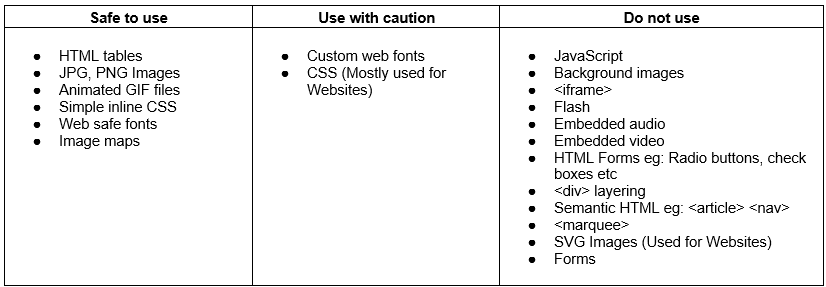
Do's and Don'ts of HTML for Email
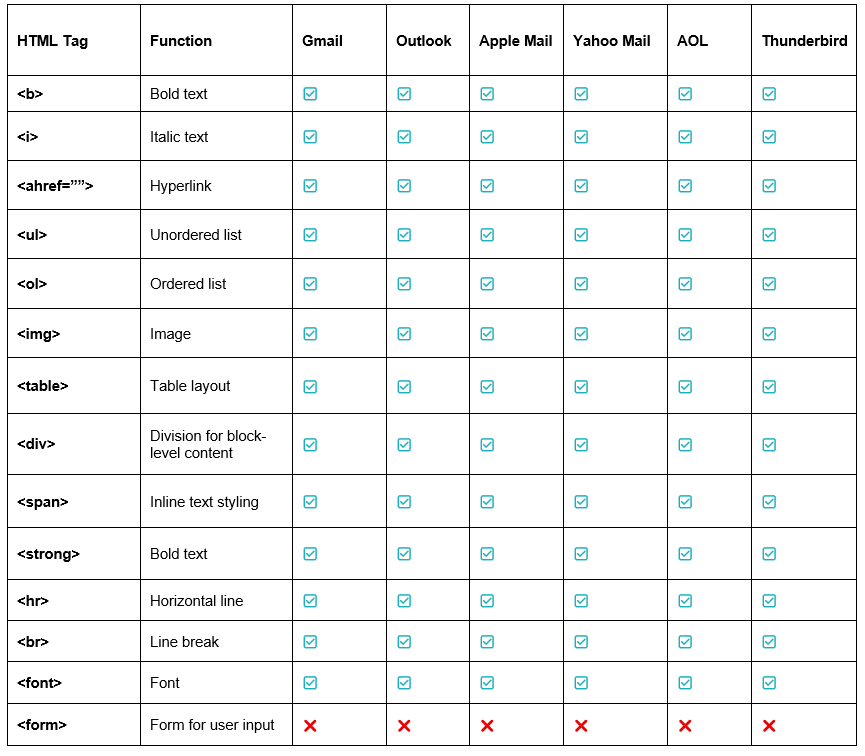
Supported HTML tags overview
List of CSS properties (Inline only) supported across majority email clients.
Inline Styles for text
These handle the formatting of your text and are widely accepted across almost all major clients.
- font-family: Defines the typeface (always include a safe fallback like ‘Arial’, ‘Helvetica’, sans-serif).
- font-size: Sets the size of the text (use px for reliable rendering).
- font-weight: Controls thickness (e.g., bold, normal).
- color: Sets the text color (always use 6-digit hex codes like #000000 for Outlook).
- line-height: Controls spacing between lines of text. (use mso-line-height-rule: exactly; to obey the exact line height in Outlook)
- text-decoration: Controls text styling like none or underline.
- text-transform: This HTML property controls the capitalization of text. Depending on where you are using it, it can change text into uppercase, lowercase, or capitalize the first letter of every word. (Please note that not all Outlook versions support the Uppercase and Lowercase text transform code).
Inline styles for spacing
Email clients render margins and padding differently. Layouts are generally built with HTML tables using the below styles to control spacing.
- padding, padding-top, padding-bottom, padding-left, padding-right: The most reliable way to add whitespace.
- margin: Avoid using this globally, as it is completely ignored or misapplied by Outlook.com and older Windows Outlook versions.
- width: Defines the width of tables, images, or blocks. max-width: and min-width: can also be set to set width restrictions.
- height: Defines the height of elements. max-height: and min-height: can also be set to set height restrictions. (Use this sparingly as older mail clients ignore heights.)
Color & Background
- background-color: Sets the background color of tables, cells, or blocks.
- color: Sets text color.
Images & Borders
- display: block: Essential for images to remove the default gap that Outlook adds beneath them.
- max-width: 100%; height: auto; – the standard technique used to make images fully responsive.
- border: none or border: 0: Prevents unwanted blue lines around linked images.
- border-radius: Used for creating rounded buttons. Note: Older versions of Outlook on Windows do not support rounded corners.
- Border, border-bottom, border-top, border-left, border-right: defines the border’s thickness, style and color.
Alignment (Can be used for text and images)
Vertical-align: Common values include:
- middle: Centers the element vertically relative to the parent’s baseline.
- top: Aligns the top of the element with the top of the line or cell.
- bottom: Aligns the bottom of the element with the bottom of the line or cell.
- baseline: The default; aligns the element with the baseline of the parent element’s font.
Align: Common values include:
- text-align: Aligns text (left, center, right, justify).
- align: Images, td and tables (left, centre, right)
Important Tips for HTML Styles
Avoid shorthand: Instead of margin: 10px 0;, write out every property (e.g., margin-top: 10px; margin-bottom: 10px;) for better client compatibility.
Be careful of incorrectly copying the HTML code with spacing: Write out the colours and font types without spacing to ensure correct code readability (Eg: #ffffff and not # ffffff)