
Shared Mailboxes
A shared mailbox is an email address that multiple people can use to manage emails. Users access the shared mailbox from their own primary account.
Advantages of using the Rocketseed Send on Behalf feature and Microsoft 365
- Individual user signature displays.
- This feature allows a team to monitor and reply to emails collaboratively from a common account.
Limitations of using the Rocketseed Send on Behalf feature and Microsoft 365.
- Send on Behalf and the Send As feature can’t be activated simultaneously as the Send As feature takes priority.
- The shared mailbox email address needs to be a licensed mailbox.
When using Azure AD Sync the Shared mailbox needs to exist as a user on the Azure tenant in order for the Send on behalf feature to work on Rocketseed.
Below provides instructions for different email client set-ups.
Microsoft 365
1. Steps to activate the Send on Behalf feature within the Rocketseed interface:
- In the left hand menu settings cog click on ‘Edit account’
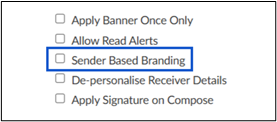
- Scroll down to “Email Branding Preferences” click the check box “Sender Based Branding”
- Scroll down and “Save Account”
2. Steps to activate the Send on Behalf feature on Microsoft 365:
- Go the Exchange Admin panel
- Go to the User’s Mailbox on the MS365 Portal
- Go to the Delegation tab
- Click the Edit button under the “Send on behalf” section
Advantages of using the Rocketseed Send on Behalf feature and Google
- Easy accessibility for customer-facing addresses (info@, support@).
- This feature allows a team to monitor and reply to emails collaboratively from a common account.
Limitations
A Google Workspace account can have a maximum of 1000 delegates and a Personal Gmail account can have 10. Simultaneous users are recommended to be 40, to prevent slow response time.
1. Steps to activate the Send on Behalf feature within the Rocketseed interface:
- In the left hand menu settings cog click on ‘Edit account’
- Scroll down to “Email Branding Preferences” click the check box “Sender Based Branding”
- Scroll down and “Save Account”

2. Steps to activate the Send on Behalf feature on Google:
Method 1: Gmail Delegation:
- Go to Settings (gear icon) → See all settings → Accounts and Import.
- Under Grant access to your account, click Add another account.
- Enter the email address of the person you want to delegate access to.
- They’ll get an invitation and can then access the mailbox from their Gmail.
Method 2: Google Groups Collaborative Inbox:
- Go to the Google Admin Console (admin.google.com)
- Navigate to Groups → Create Group.
- Example: support@company.com
- Add members who should access the inbox.
- In Group settings, enable Collaborative Inbox.